
Tables and editing
Every kind has a table, and every object has a details panel where you can read and edit its YAML.
Tables
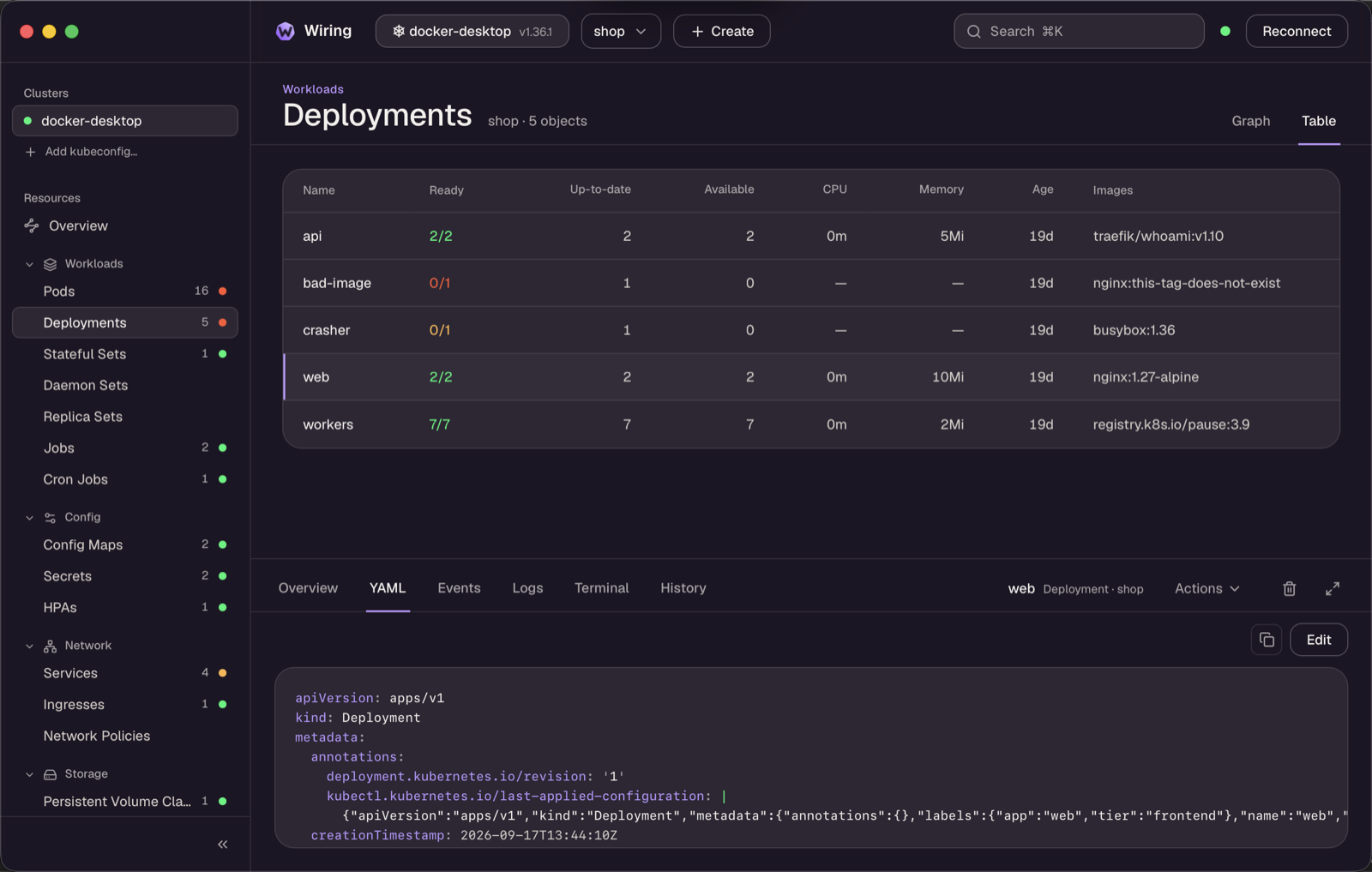
Click a kind to open a kubectl get-style table:
- Sort by any column, and filter with the search box.
- Move between rows with ↑/↓.
- Double-click a row, or press Enter, to jump to the object in the graph.
Details panel
The panel shows Overview, YAML and Events tabs for the selected object, plus Logs and Terminal for pods and workloads, and History for Deployments, StatefulSets and DaemonSets. Drag its top edge to resize it (or focus the edge and use ↑/↓). Maximise it with ⤢ and restore it with Esc.
Editing
- Edit on the YAML tab opens the object in an editor.
- Save (⌘S / Ctrl+S) shows a line diff of what will be sent.
- Apply replaces the object on the server with strict field validation, so unknown fields are rejected rather than silently dropped.
If the object changed on the server while you were editing, you can Reload (drop your edits) or Overwrite (resend on top of the new version). Server validation errors appear inline.
+ Create in the header starts from a template for any watched kind. The trash icon in the details panel deletes an object after confirmation. On a pod group it deletes every member pod, and the controller recreates them.